
ExMint organizes your financial data across several sheets in your Excel workbook. Understanding these sheets is key to making the most of the add-in.
Transactions Sheet
The Transactions sheet is the heart of your financial data in ExMint.
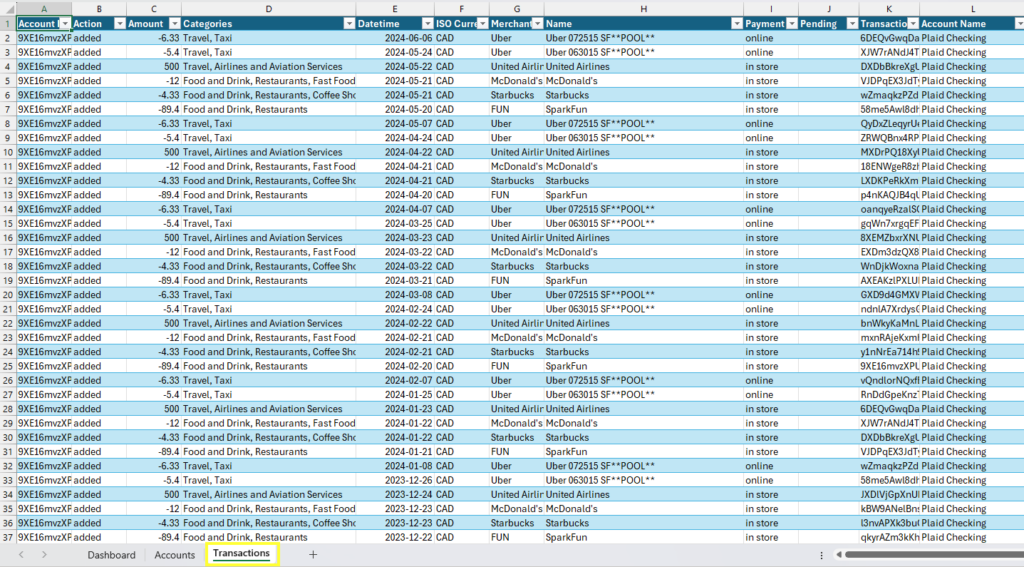
Key features:
- Each row represents a single transaction.
- Columns include details such as date, amount, merchant name, and category.
- Custom columns with formulas provide additional insights (e.g., “6M AVG”, “Budget”).
Important columns:
- Plaid Account ID: Links the transaction to a specific account.
- Amount: Negative for expenses, positive for income.
- Date: The date of the transaction (formatted as an Excel date).
- Custom Category: You can modify this for personalized categorization.
Tips:
- Use Excel’s filter and sort features to analyze your transactions.
- Don’t manually add rows to this sheet; let ExMint handle data insertion.
Accounts Sheet
The Accounts sheet provides an overview of all your connected bank accounts.
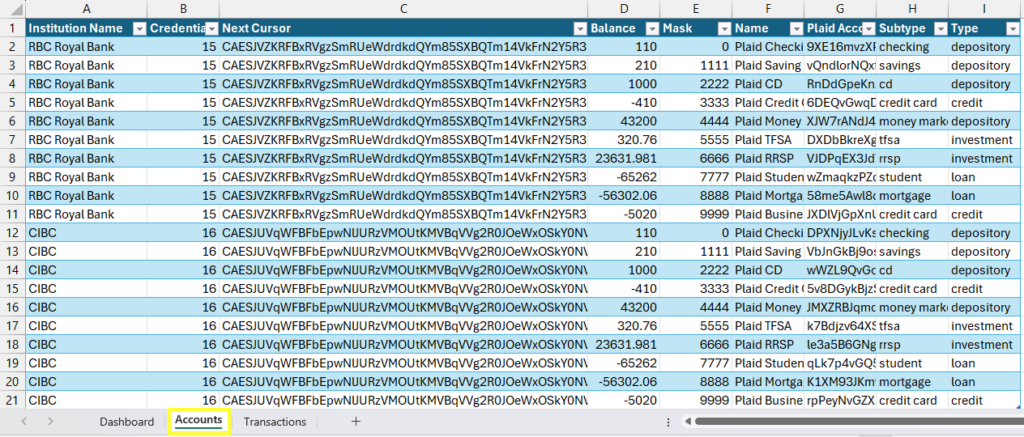
Key features:
- Each row represents a bank account.
- Columns include institution name, account type, balance, and other details.
Important columns:
- Plaid Account ID: Unique identifier for each account.
- Balance: Current balance of the account.
- Type: Indicates whether it’s a checking, savings, credit card, or other account type.
Tips:
- Use this sheet to get a quick overview of your total assets and liabilities.
- The “Next Cursor” column is used by ExMint for efficient syncing; don’t modify it.
Dashboard Sheet
The Dashboard sheet provides a summary view of your financial data using pivot tables.
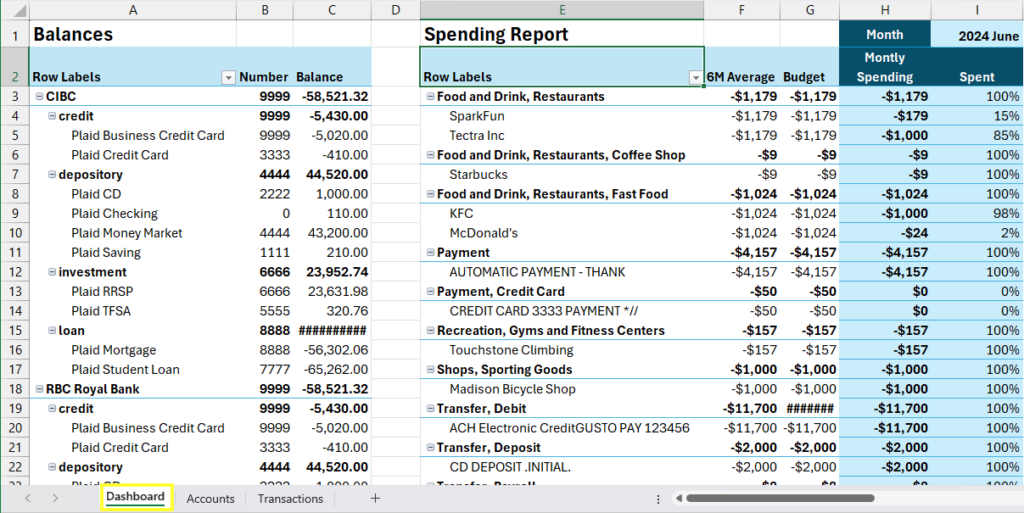
Key features:
- Summary Pivot Table: Shows your spending by category, comparing it to your 6-month average and budget.
- Balances Pivot Table: Displays your account balances grouped by institution and account type.
Tips:
- Use the pivot table filters to analyze specific time periods or categories.
- The “Sel_Month” cell allows you to select a specific month for analysis.
Conf Sheet
The Conf (Configuration) sheet is hidden by default and contains important settings for ExMint. Please do not delete it.
Key features:
- Formulas table: Defines custom calculations applied to the Transactions sheet.
- Names table: Defines named ranges used throughout the workbook.
Important: Do not modify the Conf sheet unless instructed by ExMint support. Incorrect changes can disrupt the add-in’s functionality.
Working with the Data
- ExMint automatically updates these sheets during each sync.
- You can add your own calculations or sheets that reference this data.
- Use Excel’s powerful features like charts, PivotTables, and formulas to gain insights from your financial data.
- While you can modify data in the Transactions sheet (e.g., to refine categories), avoid deleting rows or changing key columns like transaction IDs.
Remember, the power of ExMint lies in combining automated data import with Excel’s flexibility. This allows you to create custom reports and analyses tailored to your specific financial needs.